📌 28 de Agosto, 2026
Xiaomi Pad 6 as Linux Tablet
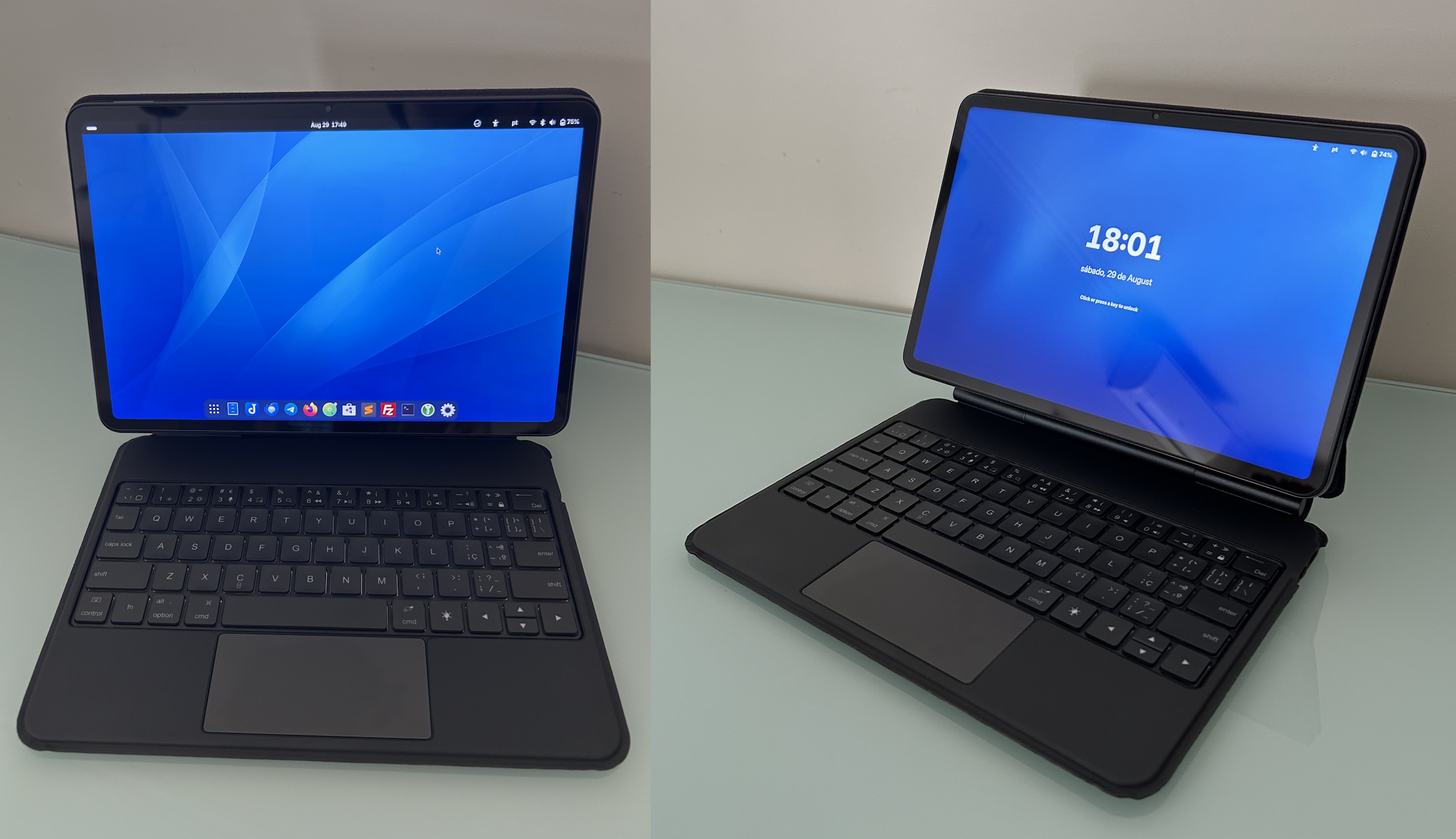
I recently bought a Xiaomi Pad 6 (8-core CPU, 8 GB RAM, 256 GB storage) to use as an ultra-lightweight “laptop” – at just 490 g. Here are my observations on what works, what doesn’t, and a few tips for anyone looking to replicate this experiment.
Unlocking the Bootloader
Unlocking the bootloader was a really annoying an unpleasant experience, apparently Xiaomi is trying really hard to keep people from unlocking their devices.
- Any device that was upgraded to HyperOS 2 or more recent can’t be unlocked right away;
- Requires a Xiaomi account with email and phone number;
- Xiaomi account can’t be created on a computer – you must use a Xiaomi phone or tablet, otherwise it won’t ever allow you to unlock the device;
- Each account can only unlock one device per year (depending on who you ask);
- The account needs to be at least 30 days old;
- Device must be running with the account added in Settings (Settings > Developer Options > Unlock Status) for more than 72h before unlocks are possible;
- You still may not be able to add the account to the Settings – in this case Hypersploit, while it doesn’t fully work, can be used to downgrade the Settings app to a version that will allow you to add the account;
- Unlocking requires a computer with a tool from Xiaomi. The tool only works on a real / physical computer running Windows 10/11 with an Intel CPU;
I eventually managed to get all of the above right and unlocked the device.
Distro Choice
Like with any other Linux system the next question is always: what distro to choose from?
This device is very well supported by Linux and you can probably get pretty much anything to run on it. Booting the system required fiddling with a custom u-boot build but it does work.
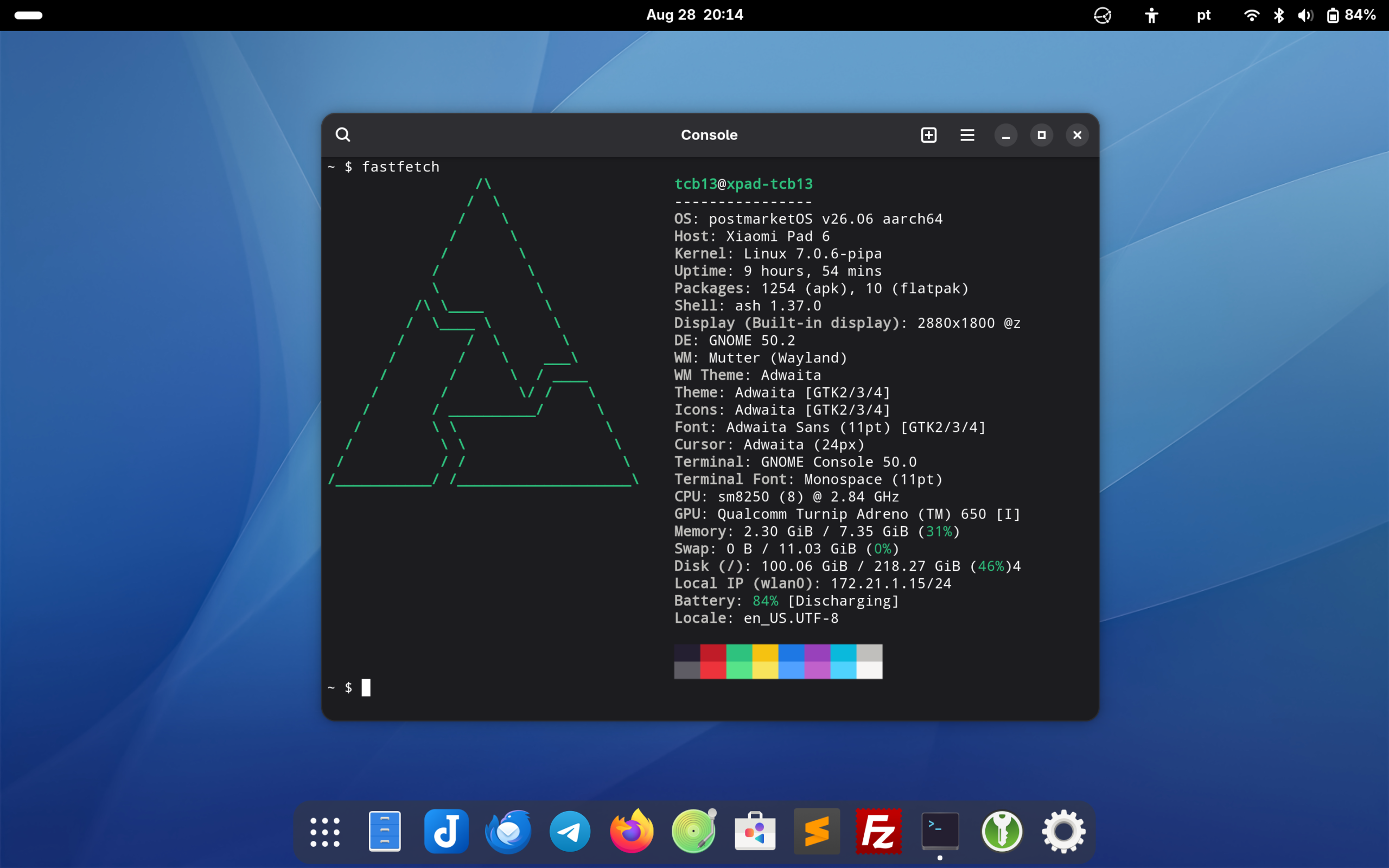
Right now the best options for this device seem to be either postmarketOS or custom builds of Fedora. I decided to go with postmarketOS because it is Alpine-based, has a good community, lots of users using this device and easy tools to help you get it running.
- Follow the guide on how to build it here: https://wiki.postmarketos.org/wiki/Xiaomi_Pad_6_(xiaomi-pipa)
- Google’s ADB tools are required to deploy the OS: https://www.xda-developers.com/install-adb-windows-macos-linux/
I managed do the configuration, build and deployment from a Kali Linux VM without issues – just had to go look for the name of some packages their tooling requires.
What Doesn’t Work?
GPU glitches in all GNOME apps:
Turns out that postmarketOS tries to setup Vulkan as the GTK renderer and, at least in this device, it results in GPU glitches whenever something is animated. Oddly enough this only happens with GNOME apps, browsers and whatnot are perfectly fine.
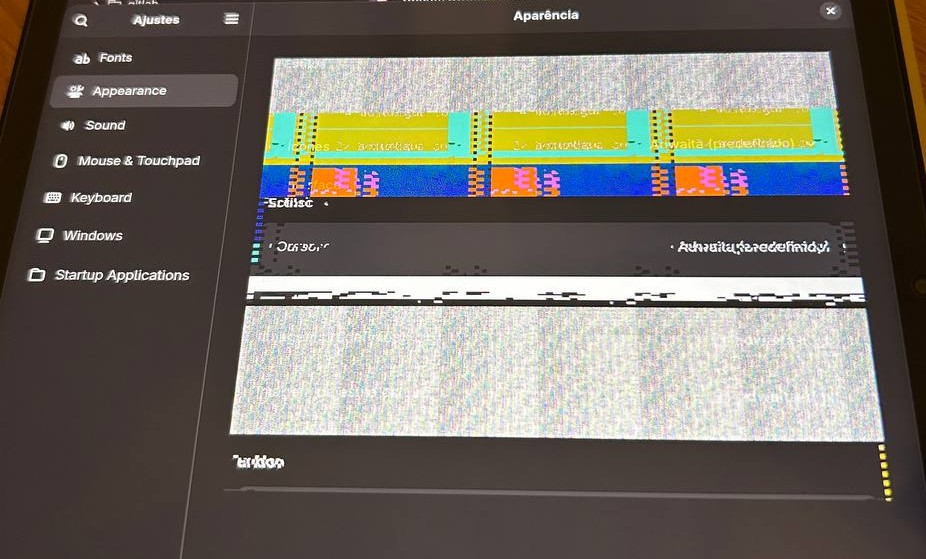
I fixed it my changing the rendering to ngl:
mkdir -p /home/tcb13/.config/environment.d
echo 'GSK_RENDERER=ngl' > /home/tcb13/.config/environment.d/gtk.conf
chown -R tcb13:tcb13 /home/tcb13/.config/environment.d
Automatic screen rotation is broken:
The fix on the wiki makes no difference, I’ve seen it working like once and never again – even after reboot. There’s no Settings → Displays → Orientation option, what’s a bit awkward. Even worse I can see the “Auto Rotate” option on panel on the top of the screen but it doesn’t seem to do anything.
I managed add some extension to GNOME to manually rotate it it’s a very poor experience Also, I can’t find a way to rotate the login screen, /var/lib/gdm/.config/monitors.xml options didn’t seem to have any effect.
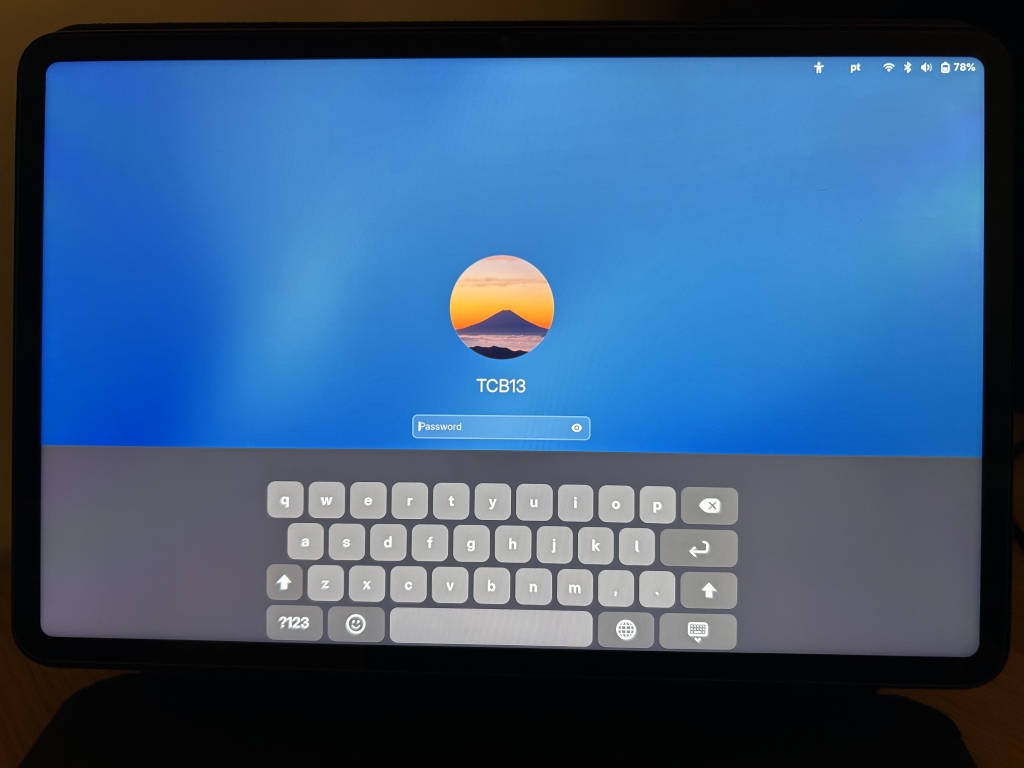
GNOME on screen keyboard is a pile of shit, makes no sense at all – creates a very large keyboard area but then the keyboard sits with very small keys inside that area:
In GNOME Files, the keyboard doesn’t show a ~ key in the directory path.
The on-screen-keyboard (OSK) doesn’t follow your native language layout, it uses some awkward layout that frankly doesn’t fit anyone’s needs and you’ll be constantly missing keys. GJS OSK is a good alternative but still not as polished as an iPad.
The GNOME team in all their wisdom also decided that when the user selects a text input there’s no need to pull up the keyboard automatically – you’ve to swipe up from the bottom to the keyboard.
What about KDE? Well, it delivers a much better experience when it comes to the keyboard, however it is considerably worse in everything else touch-realted. Also, when you try to sleep the device it will popup the power options menu instead of going directly into sleep… and then it takes more time to wake up from sleep somehow.
Charging indicator is broken:
While it charges, there’s no visual indication – not on the top bar, not on the settings. I can see the percentage go up while the settings still say “discharging”. The kernel knows the status and fastfetch is also able to report it, but not GNOME.
USB Dock?
USB and Ethernet work just fine in all the docks I’ve tested but there’s one gotcha – you can’t charge the device. When the dock is plugged into some power supply you’ll see on dmesg the following message: “We don’t know algorithms for LPM for this device, disabling LPM” / “Apsd not ready” and no power will be available. Same charger directly on the tablet works fine.
Video output via DP/HDMI output works, sometimes and in some docks. In my HP 50H55UT it doesn’t work at all, in a no-brand one I’ve had for ages it works. Connecting the display to power after the dock is connected to the tablet usually helps with this kinds of issues.
No DRM Content
Couldn’t get Firefox ESR to play DRM on Netflix and friends. Also tried Brave and it didn’t work. Not a big deal but I would like to see this fixed at some point.
What Works?
Almost everything not listed above works perfectly fine out of the box with a mainline kernel, some examples include touch, battery, USB, accelerometer, Bluetooth, WiFi etc. Even sleep when you press the button or close the lid works!
One interesting experience I made was to try to run old Windows games and emulators on this tablet. Why? Because I wanted to know if we could run Windows x86 Intel games in a Linux AArch64 device!
Since this is Alpine you’re very limited, however my approach was to run Distrobox to get Debian, add the armhf architecture and install box86-sd845 to emulate x86. From there you can also install box64 and wine-11.16-amd64-wow64 to act as the final Windows to Linux emulation layer.
Eventually you’ll be running Windows x86 Intel binaries as:
box64 /opt/wine-wow64/bin/wine ~/Downloads/windowsdesktop-runtime-8.0.30-win-x86.exeThe good old Counter-Strike 1.6 runs at its full potential. Dreamcast emulation using Flycast is perfectly fine as well – even with a Blutooth gamepad. Crazy Taxi at full speed. 🙂
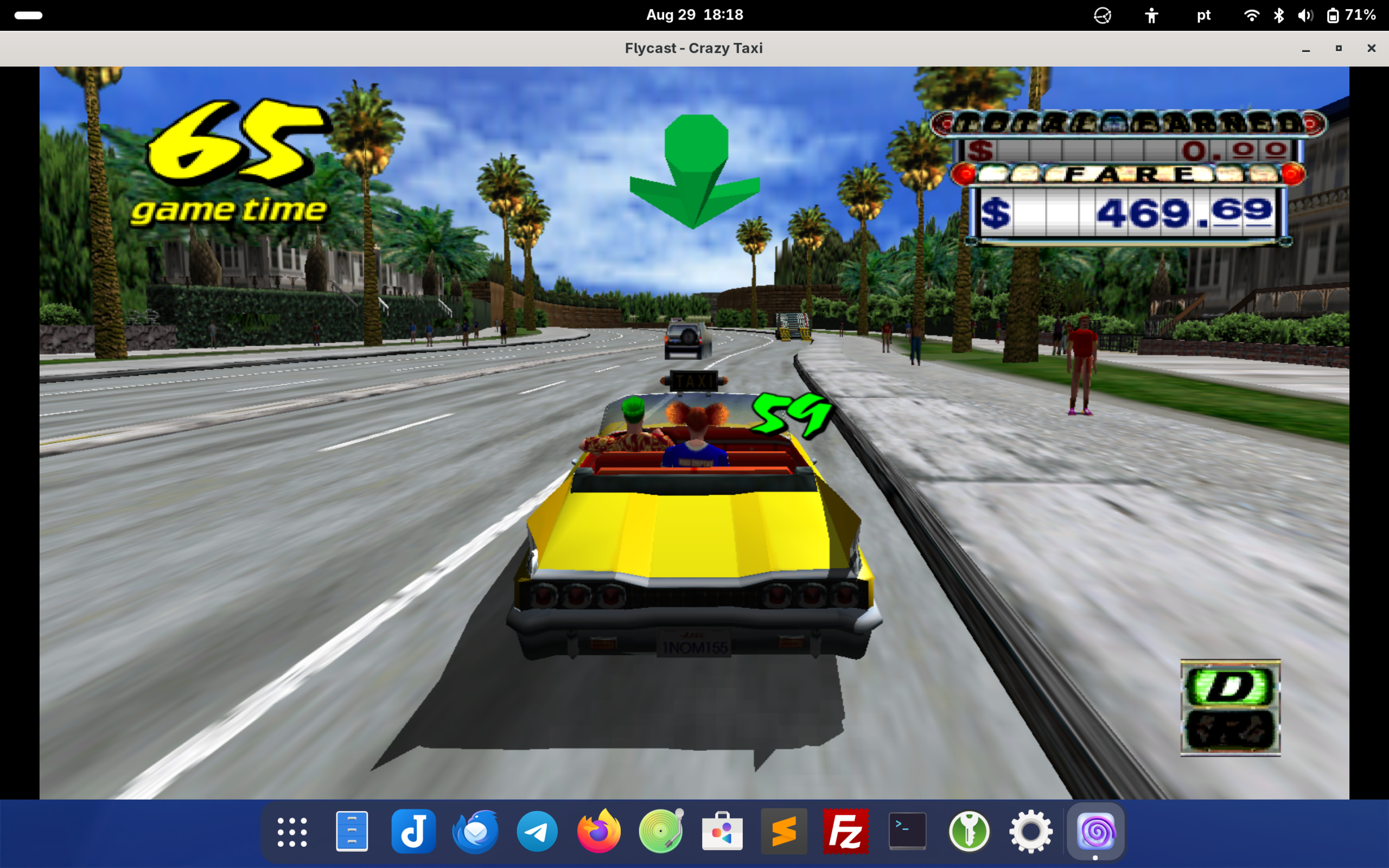
Setting the device to full performance under Settings and BOX64_DYNAREC_BIGBLOCK=1 inside the container helps with the performance in some more recent games.
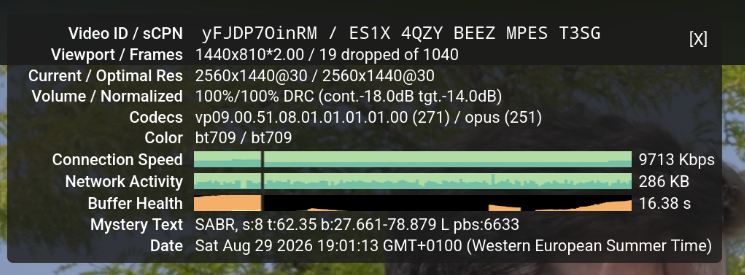
YouTube works smoothly no issues even at 2k quality when the network allows for it.
Closing Remarks
This was a very successful experiment and I’m happy with the results – even though GNOME and user experience are two concepts that don’t mix very well… I would really recommend you to get a case with a keyboard because the OSK is not usable whatever they try to say.
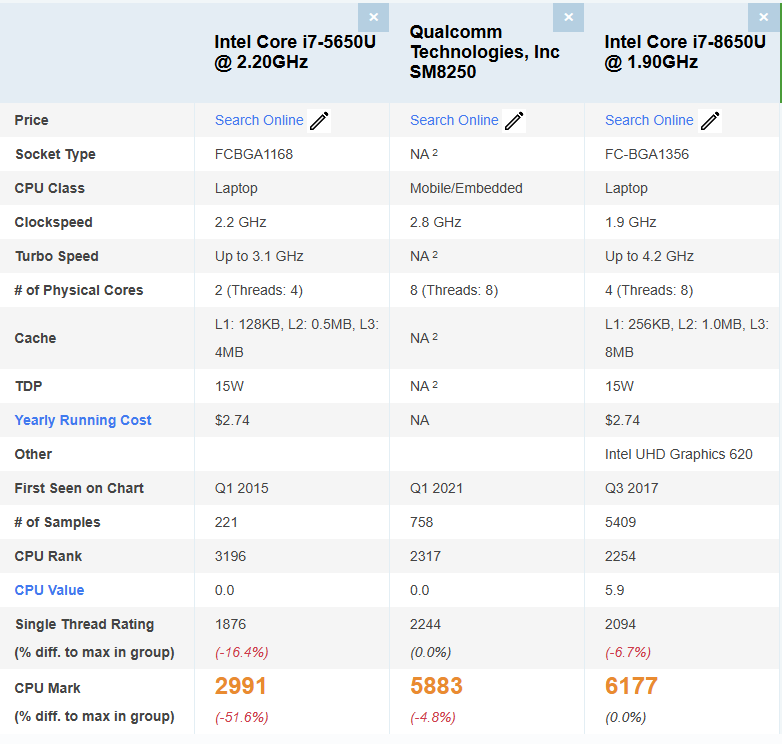
Comparing to my older laptops, a 11″ MacBook from 2015 (i7-5650U) and a HP EliteBook 840 G5 (i7-8650U) it does deliver very good CPU performance for the form factor and power consumption:
I would also try to get a Xiaomi Pad 6S Pro 12.4″ with 12GB of RAM because of the larger screen and to get a bit more room to emulate old stuff.